
How to Play Browser Games Without Lag or Buffering
أغسطس 13, 2026 · boujnahmohamedusa2022@gmail.com
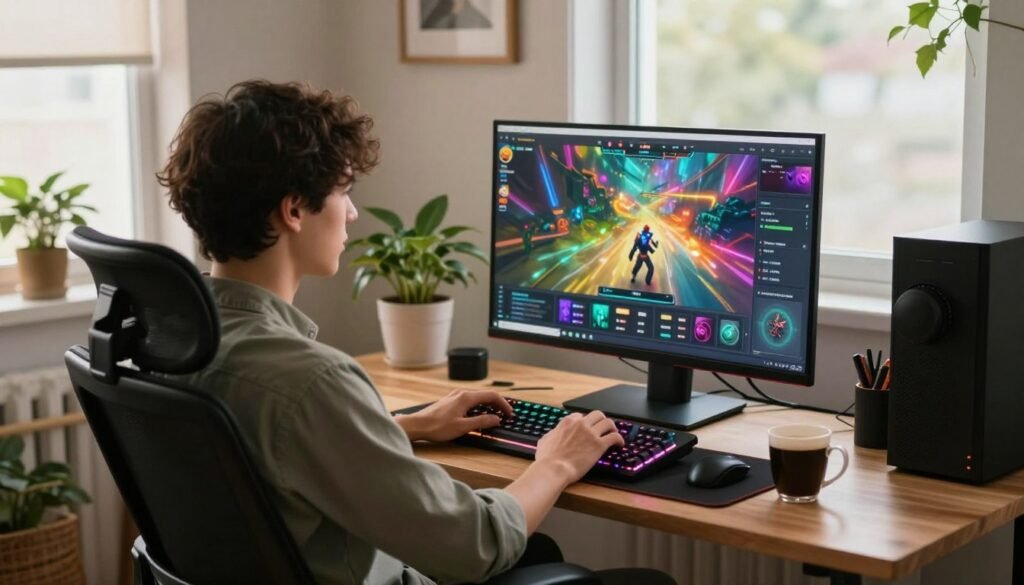
Are you tired of your favorite online titles stuttering right when the action heats up? Many players face frustrating performance dips that ruin the fun. Understanding how to play browser games without lag or buffering is the first step toward a smoother experience.
Performance issues often stem from cluttered cache files, outdated network drivers, or background processes hogging your bandwidth. You do not need to be a tech expert to fix these common hurdles. Our guide provides simple, actionable steps that anyone can follow to optimize their setup.
By implementing these proven strategies, you will reclaim your competitive edge and enjoy seamless sessions. Let’s dive into the practical solutions that will transform your digital entertainment.
Key Takeaways
- Clear your cache regularly to free up system memory.
- Close unnecessary background tabs and applications to save bandwidth.
- Use a wired Ethernet connection for a more stable internet signal.
- Update your graphics drivers to ensure optimal hardware performance.
- Disable hardware acceleration if your system struggles with rendering.
Understanding the Causes of Browser Game Lag
Identifying the root cause of performance issues is the secret to a better gaming experience. When you play browser games, you expect smooth visuals and instant reactions. Unfortunately, technical hurdles often stand in the way of that seamless flow.
Identifying Network Latency vs. Frame Rate Drops
It is vital to distinguish between a slow internet connection and a struggling computer. Network latency, often called “ping,” refers to the time it takes for data to travel from your device to the game server and back. High latency results in delayed actions, such as a character moving seconds after you press a key.
In contrast, frame rate drops occur when your computer hardware cannot render the game graphics fast enough. This makes the game appear choppy or frozen, even if your internet connection is perfect. Recognizing this difference is the first step to effectively reduce game latency.
“Performance is not just about speed; it is about the harmony between your hardware and your network connection.”
Common Browser Bottlenecks
Browsers are powerful tools, but they can become overwhelmed by complex web-based titles. Several factors often create these bottlenecks:
- Memory Leaks: Tabs left open for too long consume excessive RAM.
- Extension Overload: Too many active plugins can drain system resources.
- Hardware Acceleration: If this feature is disabled, your CPU carries the entire rendering load.
The Impact of Background Processes
Your computer is likely running dozens of hidden tasks while you play. These background processes compete for the same CPU and memory resources needed for your browser games. When your system is busy updating software or syncing files, it leaves less power for your active gaming session.
To reduce game latency, you must minimize these distractions. Closing unnecessary applications before you start playing ensures that your browser has the full attention of your hardware. By managing these resources, you create a stable environment where your games can perform at their absolute best.
Optimizing Your Internet Connection for Gaming
A rock-solid internet connection is the foundation of every great gaming session. When your connection is unstable, even the best hardware will struggle to keep up with fast-paced web titles. By taking control of your network environment, you can ensure that your data travels efficiently to the server and back.
Switching from Wi-Fi to Ethernet Connections
While wireless signals offer convenience, they are often prone to interference from walls, appliances, and other devices. Switching to a wired Ethernet connection is the single most effective way to eliminate packet loss and jitter. A direct cable provides a consistent, reliable path for your data, which is essential when you want to play games smoothly.
Reducing Network Congestion in Your Household
Your gaming traffic often competes with other activities like streaming high-definition video or downloading large files. To improve game speed, try to limit the number of devices active on your network during your gaming sessions. You might also consider scheduling large updates for your consoles or computers during off-peak hours to keep your bandwidth clear.
Adjusting Router Settings for Better Throughput
Modern routers often include features designed specifically to help you manage traffic flow. Enabling Quality of Service (QoS) settings allows you to prioritize gaming data over other types of internet traffic. This simple adjustment ensures that your browser receives the necessary bandwidth to maintain a stable connection, helping you consistently improve game speed without needing expensive hardware upgrades.
How to Play Browser Games Without Lag or Buffering Through Browser Settings
Your browser settings are the hidden engine behind your gaming experience. Many users struggle with stuttering visuals, but the solution often lies within the browser’s own configuration menu. By making a few strategic adjustments, you can optimize game performance and enjoy a much smoother session.
Enabling Hardware Acceleration in Chrome and Edge
Hardware acceleration is a vital feature that allows your browser to use your computer’s graphics card instead of relying solely on the processor. When this is enabled, your GPU handles complex rendering tasks, which frees up your CPU for other background operations. You can usually find this toggle under the System or Performance tab in your browser settings.
Managing Extensions and Plugins That Drain Resources
Extensions are helpful, but they often run in the background and consume valuable memory. If you want to know how to play browser games without lag or buffering, you must audit your installed add-ons regularly. Removing or disabling unused extensions prevents them from competing with your game for system resources.
Clearing Cache and Cookies for Smoother Performance
Over time, your browser accumulates temporary files that can slow down your connection and overall responsiveness. Clearing your cache and cookies periodically helps the browser run more efficiently. This simple maintenance step ensures that your browser is not bogged down by outdated data while you try to optimize game performance.
| Optimization Method | Primary Benefit | Impact Level |
|---|---|---|
| Hardware Acceleration | Reduces CPU load | High |
| Extension Audit | Frees up RAM | Medium |
| Cache Clearing | Improves load times | Low |
Managing Browser Memory and Resource Usage
Modern web games require significant power, making memory management essential for play games smoothly. Browsers often consume large amounts of RAM, which can lead to stuttering during intense gameplay sessions. By taking control of how your software utilizes system resources, you can maintain high performance even on older hardware.
Using the Browser Task Manager to Identify Heavy Tabs
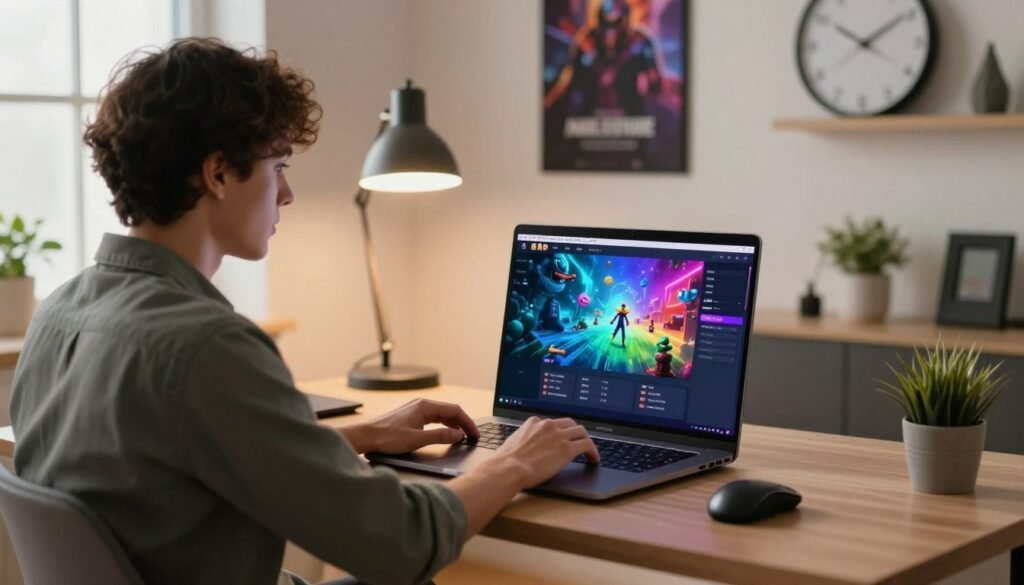
Most modern browsers, such as Chrome and Edge, include a built-in task manager. You can access this tool by pressing Shift + Esc while your browser is open. This feature allows you to see exactly which tabs or extensions are consuming the most memory and CPU power.
If you notice a specific tab using excessive resources, simply select it and click “End Process.” This immediate action frees up RAM, allowing your active game to play games smoothly without unnecessary background interference.
Limiting Active Tabs While Gaming
It is tempting to keep dozens of tabs open, but this habit is a primary cause of performance drops. Each open tab competes for the same pool of memory, which can starve your game of the resources it needs to render frames quickly.
- Close all non-essential tabs before launching a game.
- Use bookmarking tools to save pages for later instead of leaving them open.
- Restart your browser periodically to clear out accumulated memory leaks.
Adjusting Power Settings for High-Performance Gaming
Your operating system often defaults to a balanced power plan to save energy, which can throttle your hardware. To ensure your computer is running at peak capacity, navigate to your system’s power settings and select the “High Performance” or “Ultimate Performance” mode.
This adjustment ensures that your CPU and GPU receive the power required to handle demanding web-based titles. When your hardware is fully optimized, you will find it much easier to play games smoothly during long sessions.
| Strategy | Impact on Performance | Ease of Use |
|---|---|---|
| Task Manager Cleanup | High | Easy |
| Closing Unused Tabs | Medium | Very Easy |
| High-Performance Mode | High | Moderate |
Updating Drivers and Software for Peak Performance
If you are tired of stuttering visuals, your outdated software might be the primary culprit behind your gaming frustrations. Maintaining a healthy digital environment is essential for anyone looking to enjoy high-quality web games without interruption. By keeping your system components current, you can effectively minimize lag in browser games and ensure a much smoother experience.
Keeping Graphics Drivers Updated
Your graphics card acts as the engine for rendering complex web-based visuals. When your drivers are out of date, the communication between your hardware and the browser becomes inefficient. Regularly visiting the official websites of NVIDIA, AMD, or Intel ensures you have the latest performance patches installed.
These updates often contain specific optimizations that help your hardware handle modern web technologies more effectively. Keeping these drivers current is a proven way to minimize lag in browser games and prevent unexpected graphical glitches during intense gameplay.
Ensuring Your Browser Version is Current
Modern browsers like Chrome, Edge, and Firefox receive frequent updates to improve their rendering engines. These updates are not just for security; they often include significant speed improvements that directly impact how fast a game loads. You should check your browser settings periodically to ensure you are running the latest version available.
An outdated browser may struggle to process the latest web standards, leading to unnecessary buffering. By enabling automatic updates, you ensure that your browser is always equipped with the latest performance enhancements provided by developers.
Updating Your Operating System for Compatibility
Your operating system serves as the foundation for every application you run, including your web browser. System updates often include critical patches that improve how your computer manages memory and background tasks. Keeping your OS updated helps maintain overall system stability, which is vital when you want to minimize lag in browser games.
These updates also ensure that your hardware drivers remain compatible with the latest software requirements. Taking the time to install these updates creates a more stable environment, allowing your browser to dedicate more resources to your gaming sessions.
Utilizing Gaming-Specific Browser Features
Did you know that some browsers are built specifically to handle the heavy demands of web-based gaming? Modern software developers now recognize that gamers need more control over their system resources. By leveraging these specialized tools, you can effectively optimize game performance and enjoy a much smoother experience.
Exploring Features in Opera GX for Gamers
Opera GX stands out as a premier choice because it includes built-in limiters for both CPU and RAM usage. These features allow you to cap how much memory your browser consumes, ensuring your game has the necessary power to run without stuttering. When you actively manage these resources, you prevent the browser from hogging the hardware needed for your session.
“Technology is best when it brings people together and makes our digital lives more efficient.”
Configuring Browser Flags for Experimental Performance Boosts
If you are looking for deeper control, browser flags offer a gateway to experimental settings. These hidden options allow you to toggle features that are not yet standard in the main interface. By enabling specific flags related to GPU rasterization or smooth scrolling, you can further optimize game performance on your machine.
Please note that these settings are experimental and may occasionally cause instability. It is wise to change only one flag at a time so you can easily revert if you notice any unexpected behavior.
Using Incognito Mode to Bypass Extension Interference
Sometimes, your browser extensions are the hidden culprits behind lag and buffering. These add-ons often run in the background and consume valuable processing cycles while you play. Using Incognito mode is a simple yet effective way to disable all extensions instantly.
If your game runs perfectly in Incognito mode but lags in a normal window, you have confirmed that an extension is the source of the problem. This diagnostic step is essential for identifying which specific plugin needs to be removed or updated to restore your gaming speed.
Advanced Techniques to Minimize Latency
When basic fixes fail, these advanced strategies will help you take control of your connection. If you are still experiencing delays, your network configuration might be the culprit. By adjusting how your computer communicates with the internet, you can effectively minimize lag in browser games and enjoy a much smoother experience.
Configuring DNS Settings for Faster Response Times
Your Domain Name System (DNS) acts like a phonebook for the internet. When you type a web address, your computer asks a DNS server to find the correct IP address. Using a faster, more reliable DNS provider can shave precious milliseconds off your connection time.
Many gamers find that switching to services like Cloudflare or Google DNS provides a more stable connection. This simple change helps improve game speed by reducing the time it takes for your browser to locate game servers.
Disabling Background Data Syncing
Modern operating systems and browsers love to sync data in the background. While this is helpful for cloud storage, it often consumes bandwidth that your game desperately needs. Disabling these automatic updates during your gaming sessions can prevent sudden spikes in latency.
“A stable network is the foundation of every great gaming experience, ensuring that your inputs are registered exactly when you make them.”
Check your browser settings and operating system preferences to pause cloud syncing or automatic background downloads. This ensures that your entire connection is dedicated to your active browser game.
Using VPNs Strategically to Improve Routing
Sometimes, the path your data takes to reach the game server is inefficient. A Virtual Private Network (VPN) can occasionally improve game speed by forcing your traffic through a more direct or less congested route. This is particularly useful if your ISP has poor peering agreements with the game’s hosting provider.
However, choose your VPN server location carefully to avoid adding unnecessary distance. A server closer to the game’s data center is usually the best choice to minimize lag in browser games.
| Optimization Method | Primary Benefit | Difficulty Level |
|---|---|---|
| DNS Configuration | Faster Server Lookups | Easy |
| Background Syncing | Bandwidth Preservation | Medium |
| Strategic VPN Use | Optimized Routing | Advanced |
Hardware Considerations for Browser Gaming
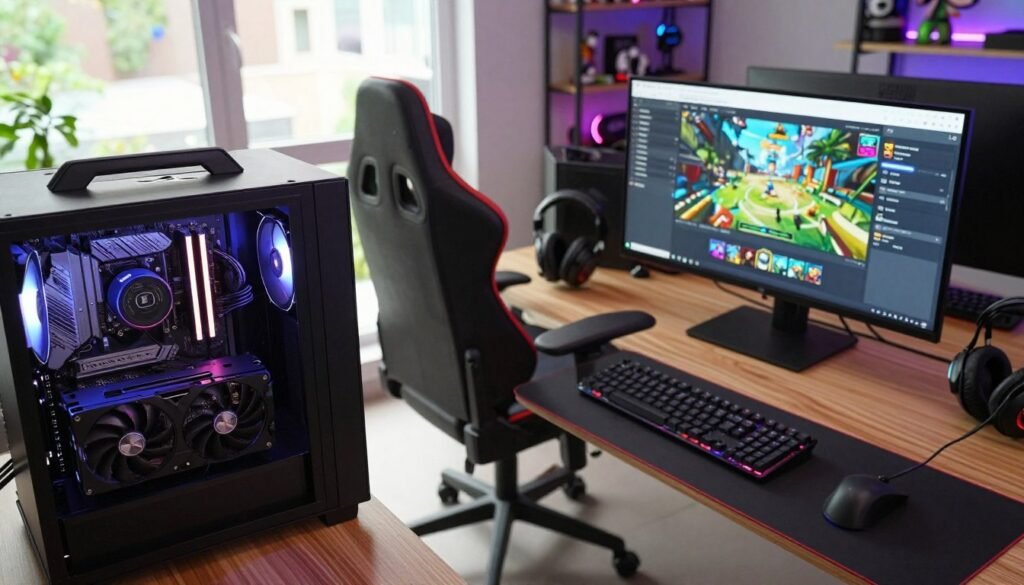
Hardware limitations often act as a silent bottleneck for players enjoying high-end browser games. While software optimization is helpful, your physical components ultimately dictate the performance ceiling of your system. Understanding these factors is essential for anyone looking to achieve a seamless experience.
The Role of RAM in Browser Performance
Random Access Memory (RAM) is the workspace where your computer handles active tasks. When you run complex browser games, your system needs enough memory to store game assets locally for quick access. If your RAM is insufficient, the browser is forced to swap data to your hard drive, which is significantly slower.
This swapping process creates noticeable stuttering and long loading times during gameplay. Upgrading your RAM ensures that your browser can keep more game data ready for immediate use. This simple hardware change often results in a much smoother experience.
Upgrading Your Processor for Complex Web Games
The Central Processing Unit (CPU) acts as the brain of your computer, handling the logic and physics calculations for modern web titles. Complex browser games require a processor that can handle multiple scripts and rendering tasks simultaneously. A slow CPU will struggle to keep up with the demands of high-fidelity graphics and real-time interactions.
If you find that your game performance drops during intense action sequences, your processor might be the limiting factor. Investing in a faster CPU allows your system to process game data more efficiently. This upgrade is crucial for maintaining high frame rates in demanding environments.
Optimizing Monitor Refresh Rates for Web-Based Titles
Visual fluidity is not just about your computer’s power; it is also about how that information is displayed. A monitor with a higher refresh rate, such as 144Hz, makes motion in browser games appear much smoother compared to a standard 60Hz screen. This difference is especially important in fast-paced titles where every millisecond counts.
Ensure that your monitor settings are correctly configured in your operating system to match its maximum refresh rate. You should also verify that your browser is not capping the frame rate through internal settings. By aligning your hardware capabilities, you can enjoy a truly immersive gaming experience.
Troubleshooting Persistent Buffering Issues
If you have exhausted all standard optimization methods and still experience performance issues, a deeper diagnostic approach is necessary. Persistent interruptions can ruin your immersion, but a systematic check often reveals the hidden culprit. By focusing on your network health, you can finally stop buffering in games and enjoy a seamless experience.
Testing Your Connection Speed and Jitter
To effectively diagnose your connection, you must look beyond simple download speeds. While high bandwidth is helpful, stability is the true key to a smooth session. You should use reputable online tools to measure your ping and, more importantly, your jitter.
Jitter represents the variation in the time it takes for data packets to travel to the server. High jitter often causes sudden spikes that reduce game latency issues only temporarily. Aim for a jitter value of less than 30ms to ensure your connection remains stable during intense web-based gameplay.
Checking for ISP Throttling
Sometimes, your Internet Service Provider might intentionally slow down your connection during peak usage hours. This practice, known as throttling, often occurs when you engage in high-bandwidth activities like streaming or gaming. You can test for this by comparing your speeds during early morning hours versus peak evening times.
If you notice a significant drop in performance during the evening, your ISP might be managing your traffic. Using a VPN can sometimes bypass these restrictions by masking your activity from the provider. If the performance improves significantly while using a VPN, it is a strong indicator that throttling is the root cause.
When to Contact Your Internet Service Provider
If your tests consistently show high packet loss or extreme latency, the problem likely lies outside your home network. You should gather your test results and contact your ISP for professional assistance. Be prepared to share your findings, as this helps their technicians diagnose the issue faster.
Ask them to check for line noise or signal degradation in your area. If they confirm that your equipment is functioning correctly, they may need to send a technician to inspect the physical wiring. Taking these steps will help you stop buffering in games and reduce game latency for the long term.
| Metric | Ideal Range | Impact on Gaming |
|---|---|---|
| Ping (Latency) | Below 50ms | High responsiveness |
| Jitter | Below 30ms | Consistent movement |
| Packet Loss | 0% | No missing data |
Conclusion
Achieving a smooth experience requires a proactive approach to your digital setup. You now possess the tools to stop buffering in games by managing your network and browser resources effectively.
Small adjustments to your Google Chrome or Microsoft Edge settings create a noticeable impact on performance. Regular maintenance of your hardware and software ensures that your system remains ready for demanding web-based titles.
Take a moment to review your connection speed and browser memory usage periodically. These simple habits help you stop buffering in games while keeping your favorite platforms running at peak efficiency.
Your commitment to optimizing these technical details leads to a superior gaming experience. Enjoy your time exploring new worlds without the frustration of lag or interruptions.
FAQ
What is the most effective way to play games smoothly in a web browser?
To play games smoothly, you should start by closing unnecessary background tabs and applications that consume RAM and CPU power. Additionally, ensuring that hardware acceleration is enabled in your browser settings—such as in Google Chrome or Microsoft Edge—allows your GPU to handle graphical tasks, which helps minimize lag in browser games significantly.
Why does my browser game keep stuttering even with fast internet?
Stuttering is often caused by frame rate drops rather than your internet connection. This happens when your computer’s hardware is overwhelmed. To optimize game performance, check your Browser Task Manager to see if specific extensions or hidden processes are hogging resources. Managing these “bottlenecks” is a key step in learning how to play browser games without lag or buffering.
How can I stop buffering in games and reduce annoying pauses during gameplay?
To stop buffering in games, try switching from a Wi-Fi connection to a stable Ethernet cable. Wireless signals are prone to interference and packet loss. You can also reduce game latency by updating your router’s firmware and ensuring no other devices on your home network are performing heavy downloads or streaming 4K video while you play.
Will changing my browser help improve game speed?
Yes, using a gaming-centric browser like Opera GX can help improve game speed because it includes built-in limiters for RAM and CPU usage. If you prefer mainstream browsers, using Incognito Mode can also help by disabling resource-heavy extensions that might otherwise slow down your browser games.
How do I reduce game latency if I suspect my ISP is the problem?
If you notice consistent delays, use a tool like Ookla Speedtest to check for jitter and high ping. To bypass poor routing from your Internet Service Provider (ISP), you might try using a reputable VPN or switching your DNS settings to Google Public DNS or Cloudflare (1.1.1.1). These steps are vital if you want to minimize lag in browser games caused by external network issues.
Why is it important to keep graphics drivers updated for web-based gaming?
Even though you are playing in a browser, your NVIDIA or AMD graphics card is still doing the heavy lifting for rendering 3D environments. Keeping your drivers current ensures compatibility with the latest web standards like WebGL. This is one of the simplest ways to optimize game performance and ensure your system can handle complex browser games without crashing.
Can I really play high-end browser games without lag or buffering on an older computer?
While older hardware has limits, you can still achieve a better experience by adjusting your operating system’s Power Options to “High Performance” and clearing your browser’s cache and cookies regularly. By following these optimization steps, you can learn how to play browser games without lag or buffering even on devices with modest specifications.